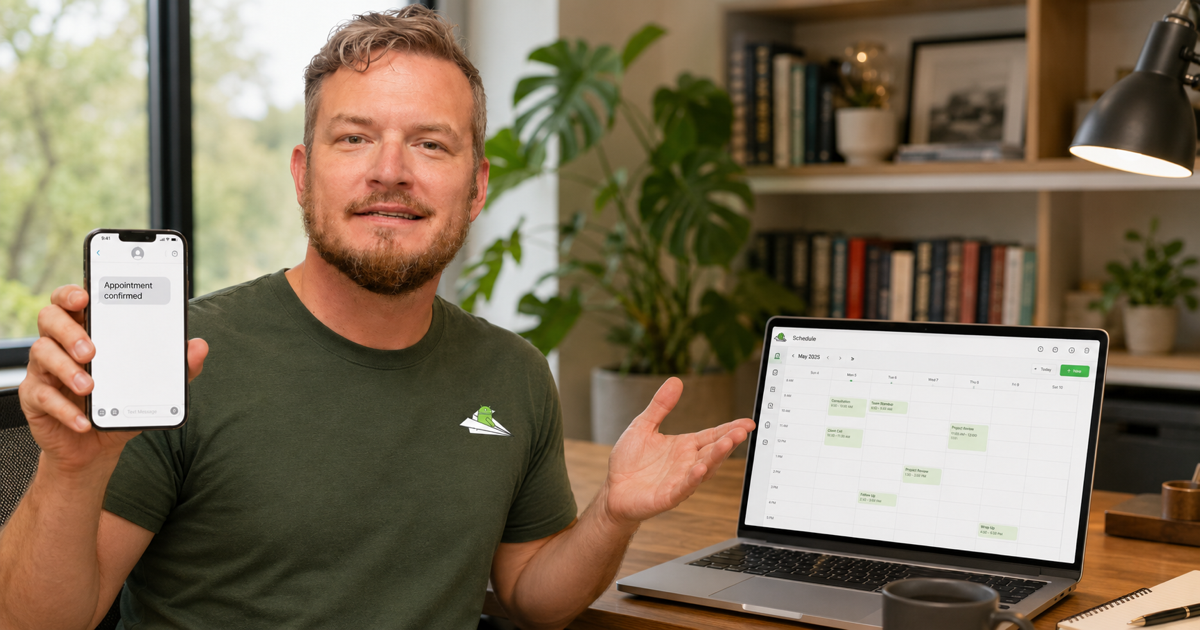
If you use Calendly to book appointments, you've probably eyed the SMS reminder feature — and then noticed three blockers:
- SMS workflows are gated to Calendly Standard or higher ($16/mo minimum, $24/mo if you want the actually-useful tier)
- Calendly's native SMS only works in US and Canada, full stop
- Behind the scenes it's Twilio, so SMS costs add up per message, plus you need a Twilio account, plus your industry has to pass Twilio's 10DLC vetting
For most use cases this works fine. For some users — international businesses, lower-plan customers, anyone in a Twilio-rejected industry, or anyone who wants more control over their reminder templates than Calendly's UI gives — there's a better path: send the SMS yourself from an Android phone you already own, via Android Texter as the gateway, fired automatically by a Zapier connection between Calendly and Android Texter.
This guide walks through the full setup: ~20 minutes start to finish, $10/month, works internationally, supports rich templates including conditional logic.
Table of contents
- Why bother — what Calendly's native SMS doesn't do
- How Android Texter fills the gaps
- What you'll need
- Step 1 — pair an Android phone to Android Texter
- Step 2 — connect Calendly to Zapier
- Step 3 — wire the Send SMS action
- Step 4 — write the reminder template
- Going further: multi-step reminders, no-show recovery
- Pricing comparison vs native Calendly SMS
- FAQ
Why bother — what Calendly's native SMS doesn't do
Calendly's built-in SMS reminders work for a baseline use case (US/Canada user, on Standard plan, with a working Twilio integration), but they fall short for several common situations:
International appointments don't fire. Calendly's SMS workflows explicitly state US and Canada only. If you book consultations with clients in the UK, Germany, Australia, or anywhere outside North America, the SMS reminder simply doesn't send. Your client gets the calendar invite and... nothing else.
Essentials plan users can't use SMS at all. Calendly Essentials ($10/mo) includes email reminders and basic automation but no SMS. You have to step up to Standard ($16/mo) just to unlock the feature, and then you still pay Twilio per message on top.
Templates are limited to Calendly's UI. You can edit reminder text in their dashboard, but you can't do real conditional logic ("if this is a paid consultation, include the prep checklist; if it's a free intro, include the cancellation policy"), can't include data from other systems, can't easily A/B test different templates.
Twilio's 10DLC restrictions apply. Calendly's SMS routes through Twilio under the hood, so any 10DLC vetting Twilio applies to your account applies here too. If you work with clients in cannabis, high-APR lending, debt collection, MLM, or "lead-gen" verticals, you may find Twilio rejecting your 10DLC registration entirely.
Per-message charges add up. Twilio charges ~$0.0079 per SMS segment plus carrier fees. A consultant doing 50 bookings/week with 2 reminders each = 400 SMS/month = ~$3.50/mo just in delivery costs, on top of Calendly Standard ($16/mo) and Twilio's monthly minimums.
How Android Texter fills the gaps
Android Texter is a self-hosted SMS gateway that uses an Android phone you already own. The phone's existing SIM sends text messages the same way you do when you text a friend. It works:
- Anywhere your phone has signal. SIM in the UK? Texts UK numbers. SIM in the US? Texts US numbers. Pair multiple phones for multiple regions.
- For any business type. No 10DLC vetting, no industry filters, no Twilio approval.
- At flat-rate pricing. $10/month per phone, unlimited messages within carrier daily limits.
- With full template customization. Compose the SMS body in Zapier (or any middleware), include any logic you want, pull data from any system Zapier connects to.
- Without leaving the Calendly Essentials plan. You don't need Standard or higher — the SMS path is separate from Calendly's native workflow features.
The connection point: a Zapier Zap that listens for Calendly events and fires Android Texter's Send SMS action.
What you'll need
- A Calendly account — any plan, including the free tier
- A Zapier account — free tier works (100 tasks/month)
- An Android Texter account — free tier works (100 messages/day)
- An Android phone — any phone running Android 8.0+ with an active SMS-capable SIM
Total setup time: ~20 minutes. Ongoing cost: $0/month on the free tiers, or $10/month on Android Texter Pro (recommended once you go past 100 messages/day).
Step 1 — pair an Android phone to Android Texter
- Sign up at androidtexter.com — click "Continue with Google"
- Dashboard → Devices → Add Device
- A QR code appears on screen
- Install the Android Texter app on the phone (download at androidtexter.com/download), open it, tap the QR scanner button, scan the code
- Grant SMS + notification permissions when prompted
- Within 30 seconds the dashboard shows the phone as Online
Stash the phone somewhere it'll stay charged and have a network connection. It can be locked, in a drawer, anywhere — it just needs to be reachable.
Generate an API key while you're in the dashboard: Settings → API
Keys → Create new. Name it calendly-zapier. Copy the key (starts
with atx_) somewhere safe — you'll paste it into Zapier next.
Step 2 — connect Calendly to Zapier
In Zapier:
- Create Zap → Trigger: Calendly → Invitee Created
- Connect your Calendly account (one-click OAuth — Zapier walks through it)
- Choose Event Type (which Calendly calendar this Zap fires for — typically just leave this blank for "any event type" if you want all bookings to send SMS)
- Click Test trigger — Zapier pulls a recent booking from your Calendly to use as sample data
If you've ever booked anything through Calendly, Zapier will find it. If not, book a test event with yourself first, then re-run the test.
Step 3 — wire the Send SMS action
After the trigger test passes:
- Add an action step → search Android Texter
- The app shows up with the actions: Send SMS, Send Broadcast, Create or Update Contact, Find Devices, Find Conversation History
- Choose Send SMS
- Click + Connect a new account
- Paste the API key you copied earlier (
atx_...) - Save the connection
Now configure the SMS:
- To Phone Number — click the field, then in the variable picker
pick
Invitee → Phone Number(Calendly captures this if the invitee filled in the phone field during booking; for booking forms that don't ask for phone, you'll need to add a "Phone" question to your Calendly event type first) - Message Body — the SMS template. See next section for ideas.
- Leave Media URL, Device ID, Scheduled at blank for the basic flow.
Click Continue → Test step. If your invitee's phone field was populated in the test booking, an actual SMS goes out. If not, add a question to your Calendly event asking for phone, book another test, and re-run.
Step 4 — write the reminder template
The Message Body field is where most of the customization happens. You can mix static text with Calendly variables.
Basic confirmation template
Hi {{Invitee First Name}},

Your appointment is confirmed for {{Event Start Time}} at {{Location}}.

Need to reschedule? Use this link: {{Reschedule URL}}

Reply STOP to opt out.
Confirmation + prep checklist (with conditional)
Use Zapier's Filter step before the Send SMS step to branch by event type. Configure the Filter to only continue if the booking's event type matches a specific name (e.g., "Paid Consultation"). Then the SMS template can include the prep checklist:
Hi {{Invitee First Name}},

Your paid consultation is confirmed for {{Event Start Time}}.

Please bring:
- Your most recent financial statement
- Your goals questionnaire (sent via email)
- Any specific questions written down

Need to reschedule? {{Reschedule URL}}
24-hour reminder (separate Zap)
For the reminder-the-day-before pattern, create a second Zap using Schedule by Zapier as the trigger (daily, at 9am). Use the Calendly: Find Event search action to query for events tomorrow. Iterate (Zapier's Looping step) and send SMS to each.
Or simpler: use Calendly's "Workflow" feature to send a webhook to Zapier 24h before the event, and have Zapier fire the SMS in response. Workflows are on Standard plan; if you're on Essentials, use the Schedule + Find pattern.
No-show recovery (after the event)
Wire a third Zap: Trigger on Calendly → Invitee Marked as No Show (or the timeout if you don't manually mark). Send SMS:
Hi {{Invitee First Name}},

Looks like we missed you today. No worries — happy to reschedule. Pick
a new time here: {{Booking URL}}
Going further: multi-step reminders, no-show recovery
Once the basic flow works, you can build out more sophisticated reminder cadences:
| Timing | Purpose | Trigger |
|---|---|---|
| At booking | Confirmation | Calendly: Invitee Created |
| 24h before | Reminder #1 | Schedule by Zapier + Calendly: Find Event |
| 1h before | Reminder #2 | Same pattern, finer-grained |
| Post-event | Thank you / follow-up | Calendly: Event Ended |
| If no-show | Re-engagement | Calendly: Invitee Marked as No Show |
For higher volume (1,000+ reminders/day), use Android Texter's
Send Broadcast action instead of multiple Send SMS calls — it
sends to up to 500 recipients in a single API call with
per-recipient {{first_name}} substitution.
Pricing comparison vs native Calendly SMS
For a consultant doing 50 bookings/week, sending 2 SMS per booking (confirmation + reminder) = 400 SMS/month:
| Calendly Native SMS | Android Texter via Zapier | |
|---|---|---|
| Calendly plan required | Standard ($16/mo) | Essentials ($10/mo) or free |
| SMS gateway | Twilio (~$0.008/msg) | Android Texter ($10/mo flat) |
| Twilio account | Required | Not needed |
| 10DLC registration | Required | Not needed |
| Zapier account | Optional (only for advanced) | Required (free tier 100 tasks) |
| Monthly delivery cost | ~$3.50 | $0 |
| International | US/Canada only | Anywhere your phone's SIM works |
| Total monthly | ~$19.50 | $10-20 (depends on Zapier tier) |
The pure cost is similar. The wins are international support, customization, and not needing to navigate Twilio's 10DLC system.
FAQ
Will this work with multiple Calendly event types? Yes. One Zap can listen for all event types, or you can build separate Zaps per event type for different SMS templates. Either way works.
What if the invitee didn't provide a phone number? The Zap will fail at the Send SMS step because the phone field is empty. Add a Filter step before Send SMS to skip if the phone is empty. Or make phone required on your Calendly event type so every booking captures it.
Can the reminders come from my Calendly business name? The SMS sender appears as whatever number your paired Android phone uses (its carrier number). If you want a specific business identity, provision a dedicated phone with a memorable number, pair that one to Android Texter, and use it exclusively for Calendly reminders.
What about cancellation notifications? Calendly has an Invitee Cancelled trigger in Zapier. Wire that to a Send SMS action with a "We received your cancellation, rescheduling link: {{Booking URL}}" template.
Does this work for recurring meetings? Calendly fires the Invitee Created event for each instance of a recurring meeting, so yes — each occurrence triggers its own SMS. For weekly client check-ins, customer-success calls, etc.
Can I send the reminder from a specific phone if I have multiple paired? Yes — the Send SMS action has a Device ID field. Leave blank for auto-selection or specify a particular phone. Useful for agency setups where each client has their own paired phone.
How fast does the SMS arrive? End-to-end (Calendly booking → Zapier trigger → Android Texter API → phone sends): typically 5-15 seconds. Comparable to native Calendly + Twilio.